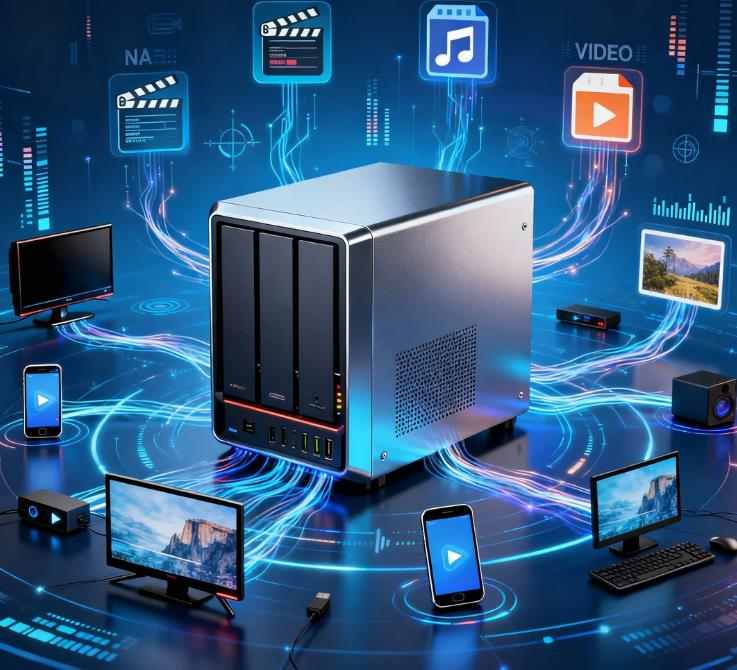
In recent years, more users across Europe and North America have started moving away from traditional streaming subscriptions and toward self-hosted media servers. Rising subscription costs, limited content availability by region, and concerns about privacy have driven a renewed interest in building personal media libraries. With the maturity of NAS hardware and powerful media server software like Plex and Jellyfin, it has never been easier to host your own Netflix-style platform at home.
This guide provides a complete, practical walkthrough for building your own media server on a NAS, focusing on real-world hardware transcoding, performance optimization, and proper library management. Whether you are a beginner setting up your first home server or an experienced user refining a high-performance media environment, this tutorial will help you build a stable, secure, and efficient system.
Understanding Personal Media Servers
A personal media server centralizes your movie, TV show, and music collection in one place and streams that content to devices across your home or over the internet. Instead of relying on third-party streaming platforms, you control the hardware, storage, network, and playback quality.
Unlike traditional file servers, media servers offer:
- Automatic metadata fetching (posters, descriptions, cast)
- Client apps for smart TVs, phones, consoles, and browsers
- Hardware-assisted transcoding for remote and mobile playback
- Multi-user profiles and viewing history
- Secure remote access
Among many available solutions, Plex and Jellyfin dominate the market for home users.
Plex vs Jellyfin: Choosing the Right Platform
Before touching hardware or installing software, it is important to understand the core differences between Plex and Jellyfin.
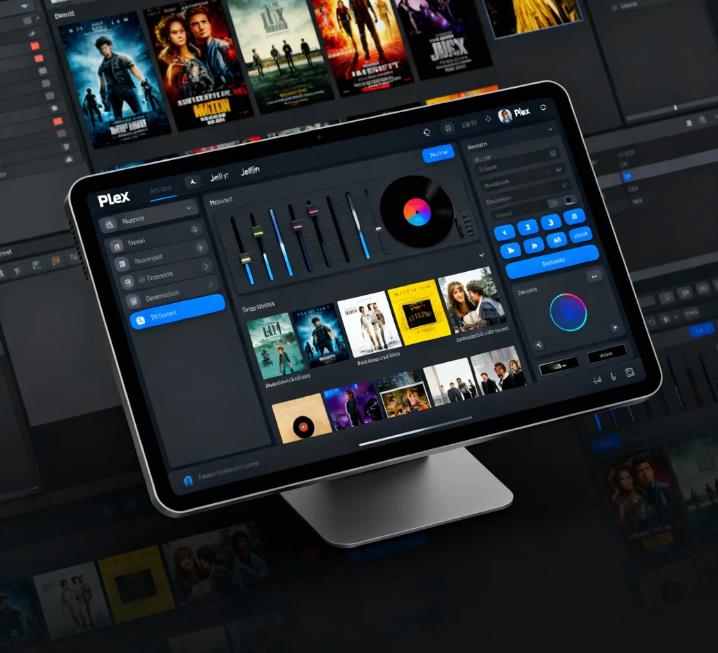
Plex is a commercial platform with a freemium model. It offers excellent client app availability across nearly every device imaginable, including Smart TVs, Apple TV, Fire TV, gaming consoles, and mobile platforms. Plex provides polished user experience, cloud-based features, and optional premium features under Plex Pass, including hardware transcoding and mobile sync.
Jellyfin is a fully open-source media server. It has no paid tiers, no user tracking, and full local control. While the client ecosystem is slightly smaller than Plex, Jellyfin supports major platforms and continues to grow rapidly thanks to its active open-source community.
In practical usage:
- Plex is usually easier for beginners.
- Jellyfin offers maximum privacy and full control.
- Both support Docker, hardware transcoding, and advanced metadata.
- Both support 4K playback, subtitles, and multi-user access.
From a technical standpoint, the NAS hardware and configuration matter far more than which platform you choose.
Selecting the Right NAS Hardware for Media Streaming
CPU and Integrated Graphics
The most critical component in a media server is the CPU, especially if hardware transcoding is required. Transcoding converts video files into formats supported by your playback device or network conditions.
Intel CPUs with integrated graphics and Quick Sync Video are the most widely supported and energy-efficient option for media transcoding. Even entry-level Intel Core i3 processors can handle multiple 1080p streams and several 4K transcodes when properly configured.
AMD CPUs can also work well, but hardware video encoding support is often less consistent in Linux-based NAS systems.
GPU for High-Performance Transcoding
In more demanding environments, a dedicated GPU can dramatically increase transcoding performance. NVIDIA GPUs with NVENC support are the industry standard for high-quality, low-latency hardware encoding.
A modest NVIDIA GTX or RTX card can handle multiple 4K transcodes with minimal CPU usage. However, power consumption, cooling, and physical space inside the NAS must be considered.
Memory and Storage
For a stable media server:
- 8 GB of RAM is the realistic minimum.
- 16 GB or more is recommended for multi-user and Docker-heavy setups.
- SSD storage should be used for the system and Docker containers.
- High-capacity HDDs are ideal for media storage.
Disk speed rarely limits streaming performance, but SSD caching can improve metadata loading and background scanning.
Network Connectivity
Modern media servers rely heavily on network performance:
- Gigabit Ethernet is the minimum standard.
- 2.5 Gbps or higher is ideal for future-proofing.
- Wi-Fi 6 is strongly recommended for wireless clients.
- Remote playback depends on your internet upload speed, not just local network speed.
Understanding Hardware Transcoding in Real-World Streaming
Many users misunderstand how transcoding actually works in practice.
Direct Play occurs when the client device supports the exact video and audio formats stored on your server. In this case, the media server streams the file without modification, and hardware resources remain mostly idle.
Transcoding happens when the client cannot natively play the file format, bitrate, or resolution. The server converts the media on the fly. This process is resource-intensive if done via software encoding but extremely efficient with hardware acceleration.
Common scenarios requiring transcoding include:
- Remote access over slow internet connections
- Older mobile devices that do not support HEVC
- 4K to 1080p downscaling
- High-bitrate Blu-ray backups streamed to mobile devices
Hardware transcoding dramatically reduces power consumption and allows the server to support multiple simultaneous users.
NAS Operating Systems for Plex and Jellyfin
Your choice of NAS operating system determines driver availability, Docker support, and hardware passthrough options. The most commonly used platforms include:
- TrueNAS Scale – Enterprise-grade storage with excellent Docker and virtualization support
- Unraid – Extremely popular among home media server users for its flexibility
- OpenMediaVault – Lightweight and highly customizable Linux-based platform
- Synology DSM – User-friendly commercial NAS OS with robust Plex support
All of these platforms can run both Plex and Jellyfin through Docker, which is highly recommended for easier updates and version isolation.
Installing Plex or Jellyfin on a NAS Using Docker
Docker is the preferred deployment method for both platforms due to its portability and simplified upgrades.
Preparing the NAS
First, ensure Docker is installed on your NAS. Most modern NAS systems offer Docker as a built-in app or plugin. Create the following directories:
/media– for movies, TV shows, and music/config– for Plex or Jellyfin configuration files/cache– optional directory for temporary transcoding data
Ensure that proper permissions are assigned so the Docker container can read and write to these directories.
Docker Deployment
A typical deployment involves:
- Pulling the official Plex or Jellyfin Docker image
- Mapping persistent storage volumes
- Mapping the network ports
- Enabling hardware device access for transcoding
After launching the container, access the web interface through a browser, complete initial setup, and create your administrator account.
Enabling Hardware Transcoding on Intel and NVIDIA Systems
Intel Quick Sync Configuration
Intel iGPU transcoding requires access to the /dev/dri devices inside the container and correct driver support on the host.
After enabling device passthrough:
- In Plex, enable hardware transcoding in the server settings.
- In Jellyfin, enable hardware acceleration under playback options.
Verification is simple: start a remote stream and check the playback dashboard. If hardware transcoding is active, CPU usage will remain low while video encoding is handled by the GPU.
NVIDIA NVENC Configuration
NVIDIA GPUs require the NVIDIA Container Runtime. Once installed:
- The GPU is exposed directly to the Docker container.
- NVENC is automatically used when available.
- Transcoding performance scales linearly with GPU capability.
GPU-based transcoding allows even small NAS systems to support many concurrent 4K users.
Structuring and Organizing Media Libraries Correctly
Poor library organization is the most common cause of metadata issues and playback errors.
Recommended directory structure:
/media
  /Movies
    /Movie Name (Year)
      Movie Name (Year).mkv
  /TV Shows
    /Series Name
      /Season 01
        Series Name S01E01.mkv
Consistent naming allows Plex and Jellyfin to correctly match content to online databases. Avoid including extra tags in file names unless absolutely necessary.
Subtitles, Metadata Agents, and Language Support
Both platforms rely on third-party metadata providers such as TheMovieDB and TVDB. Accurate matching depends on clean naming and correct year tags.
Subtitles can be stored locally or downloaded automatically. UTF-8 encoding is recommended to avoid character display issues. For users with multilingual households, both servers fully support multi-language audio and subtitle tracks.
Remote Access and Secure Streaming
Remote playback is one of the biggest advantages of personal media servers. However, it must be implemented securely.
Key components include:
- Port forwarding on the router
- Dynamic DNS for changing IP addresses
- HTTPS encryption
- Optional VPN for maximum security
Bandwidth management is essential. Most users limit outbound bitrate to prevent network congestion and to ensure stable performance during remote streaming.
Performance Optimization for Multi-User Streaming
High-quality streaming under heavy load requires some tuning:
- Prioritize Direct Play whenever possible
- Store frequently accessed metadata on SSD
- Limit simultaneous transcode sessions
- Use RAM transcoding buffers for low-latency playback
- Avoid mixing multiple heavy disk operations during peak viewing hours
Monitoring tools in both Plex and Jellyfin provide real-time visibility into stream activity and resource usage.
Common Problems and Practical Solutions
Transcoding not working:
Usually caused by missing drivers or incorrect container permissions.
Remote access buffering:
Most often caused by insufficient upload bandwidth or excessive bitrate settings.
Wrong metadata:
File naming inconsistency remains the most common culprit.
4K HDR color issues:
Often caused by incompatible tone mapping between the server and playback device.
Security and Legal Considerations
Personal media servers must be used only to store and stream media that you legally own or have the right to distribute within your household. These platforms are designed for personal use and not for commercial redistribution.
Security best practices include:
- Strong passwords and multi-factor authentication
- Restricted public port exposure
- Regular OS and container updates
- Encrypted remote access
Proper security protects not only your content but your entire home network.
Plex vs Jellyfin: Final Comparison
Plex offers the most polished ecosystem, easy setup, and best client support. It is ideal for families and users who want everything to work with minimal configuration.
Jellyfin provides unmatched transparency, complete privacy, and zero licensing costs. It appeals to advanced users who prefer full control over their infrastructure.
Functionally, both platforms deliver similar playback quality and feature sets when properly configured.
Is Building Your Own Media Server Worth It?
For users who value content ownership, privacy, high-quality playback, and long-term cost control, building a personal media server on a NAS is absolutely worth the investment.
Initial hardware costs are quickly offset by the elimination of multiple streaming subscriptions. More importantly, you gain full control over performance, quality, and accessibility of your media library.
Whether you choose Plex for convenience or Jellyfin for freedom, a well-built NAS-based media server will serve as the backbone of your home entertainment system for many years to come.