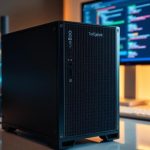

Running virtual machines directly on a Network Attached Storage device has evolved from a niche experiment into a mainstream home lab and prosumer strategy. Today’s modern NAS platforms are no longer limited to file sharing and backups. With multi-core CPUs, large memory capacities, NVMe caching, and full virtualization support, a properly configured NAS can function as a powerful all-in-one compute server capable of hosting Windows desktops, Linux servers, development labs, and even GPU-accelerated workloads.
For creators, IT professionals, and hobbyists alike, consolidating storage and virtualization into a single always-on system offers major advantages in cost efficiency, energy usage, and management simplicity. However, running Windows virtual machines and GPU passthrough workloads on a NAS requires careful planning to avoid common performance and stability pitfalls.
This guide provides a complete, practical walkthrough of how to run Windows and home lab virtual machines smoothly on a NAS, with a specific focus on GPU passthrough, VM storage design, platform selection, and performance optimization.
Why Run Virtual Machines on a NAS?
Centralizing both storage and compute into one reliable system is the core appeal. Unlike a traditional desktop or dedicated server, a NAS is designed for continuous operation with enterprise-grade file systems, snapshot protection, and robust remote access features.
Many users choose NAS virtualization for the following reasons:
A single machine can serve as file server, media server, backup target, and virtualization host.
Power consumption is often lower than running multiple desktops or rack servers.
Remote access to Windows and Linux machines becomes simple using RDP or browser-based consoles.
Data locality dramatically improves VM performance when storage lives directly on the same system.
Snapshots and replication allow fast rollback and disaster recovery for critical virtual machines.
For home labs, a NAS virtual machine host eliminates the need for multiple always-on computers while providing a professional-grade experimentation environment for networking, cybersecurity, DevOps, and cloud automation practice.
Typical Use Cases for NAS-Based Virtualization
NAS virtualization is no longer limited to light workloads. Today, users run a wide range of demanding systems directly on NAS hardware.
Common real-world use cases include:
A primary or secondary Windows workstation accessed remotely
Development servers for Docker, Kubernetes, and CI/CD pipelines
Network simulation labs using firewall and router virtual appliances
Media encoding and transcoding using GPU passthrough
AI inference servers for image processing or local language models
Home automation control systems
Penetration testing environments
The flexibility of allowing these workloads to coexist on the same hardware as your storage ecosystem is what makes NAS virtualization so compelling.
Hardware Requirements for Reliable VM Performance
Running virtual machines on a NAS is fundamentally a hardware-driven task. Underpowered systems lead to poor responsiveness, inconsistent IO, and frequent VM instability.
CPU Selection
A modern multi-core CPU with proper virtualization extensions is essential. Both Intel VT-x/VT-d and AMD-V/IOMMU must be supported and enabled in the BIOS.
For consistent performance, at least 6 physical cores are recommended for light VM usage. For Windows plus multiple Linux VMs, 8 to 12 cores provide comfortable headroom. Clock speed often matters more than extreme core counts for desktop Windows workloads.
Consumer desktop CPUs frequently outperform entry-level server chips for VM responsiveness due to higher single-thread performance.
Memory Capacity and ECC Considerations
Memory is the most common bottleneck in NAS virtualization. Windows VMs require at least 8 GB for smooth operation, with 12–16 GB preferred for productivity use.
For reliable 24/7 operation, ECC memory is strongly recommended. While not strictly required, ECC reduces the risk of silent data corruption that can damage virtual disks and file systems over long runtimes.
A minimum of 32 GB of total system RAM is a realistic baseline for mixed storage and virtualization workloads. Advanced setups frequently run 64 GB or more.
Storage for VM Workloads
Virtual machines generate highly random IO patterns. Mechanical hard drives alone struggle under heavy VM activity.
The most effective storage strategies include:
Dedicated NVMe pools for VM disks
NVMe cache layered over HDD arrays
Hybrid SSD + HDD tiered storage
All-flash arrays for high-density VM clusters
Random IOPS matter far more than sequential throughput when running multiple active VMs.
Networking
Remote desktop performance is highly sensitive to network latency and throughput. A minimum of 2.5 GbE is recommended for responsive Windows VM access. For multi-user or heavy file operations, 10 GbE delivers a noticeable improvement.
Choosing a NAS Virtualization Platform
Several NAS operating systems support virtual machines, but their reliability and feature depth vary significantly.
Proxmox on Custom NAS Hardware
Proxmox VE is often considered the gold standard for home lab virtualization. When installed on custom NAS hardware using ZFS for storage, Proxmox offers enterprise-grade VM features including snapshots, clustering, live migration, and excellent GPU passthrough support.
Pros:
Very strong community support
Excellent hardware compatibility
ZFS integration
Robust GPU passthrough
Cons:
Less beginner-friendly
Requires more manual configuration
Not a traditional turnkey NAS OS
TrueNAS SCALE
TrueNAS SCALE combines ZFS storage with KVM virtualization and container support. It is ideal for users who want a unified storage-first platform with virtualization as a secondary function.
Pros:
ZFS with enterprise-grade data protection
Web-based management
Active development
Cons:
GPU passthrough can require manual tuning
VM performance slightly behind Proxmox in some scenarios
Unraid
Unraid is popular among enthusiasts for flexible drive management and excellent GPU passthrough stability. It is especially strong for media servers and gaming VM setups.
Pros:
Very user-friendly UI
Excellent GPU passthrough reliability
Flexible storage architecture
Cons:
Not free
Parity-based array is slower for intensive VM workloads
Synology and QNAP Virtualization Platforms
Both vendors offer integrated VM managers that are easy to use but limited compared to open-source platforms.
They are well suited for light Windows VMs, test environments, and small business workloads, but advanced GPU passthrough and heavy desktop usage are often constrained by hardware compatibility and firmware limits.
Running Windows on a NAS Virtual Machine
One of the most popular NAS VM use cases is running a persistent Windows desktop that can be accessed remotely from anywhere.
Windows Version Considerations
Windows 10 remains the easiest to virtualize due to relaxed TPM requirements. Windows 11 introduces Secure Boot and TPM 2.0 requirements, which can be satisfied using virtual TPM devices in most hypervisors.
Licensing remains the user’s responsibility. US and EU licensing regulations typically require a valid retail or volume license even when running in a VM.
Remote Access Performance
For Windows VM access, several protocols are commonly used:
RDP is built into Windows and works well for office and administrative tasks.
Parsec provides low-latency access suitable for creative work and light gaming.
Moonlight is widely used with GPU passthrough for near-native desktop streaming.
The chosen protocol significantly affects perception of performance. Even a powerful VM may feel laggy if transport latency is high.
USB, Audio, and Peripheral Support
Passing USB devices into Windows VMs is straightforward on most hypervisors, but it adds an extra abstraction layer. USB audio devices, webcams, and specialized peripherals may experience compatibility issues. For professional workloads, direct hardware passthrough is preferred when available.
Understanding GPU Passthrough on NAS Systems
GPU passthrough allows a physical graphics card installed in the NAS to be assigned directly to a single virtual machine. The VM gains near-native graphics performance, enabling gaming, video rendering, GPU-accelerated AI inference, and hardware-based transcoding.
How GPU Passthrough Works
Using IOMMU, the hypervisor isolates the GPU from the host system and exposes it directly to the guest VM. The operating system inside the VM then loads the native GPU driver as if it were installed on a physical machine.
This bypasses the virtualization layer entirely for graphics workloads.
BIOS and Firmware Configuration
Successful passthrough requires:
IOMMU enabled
Above 4G decoding enabled
ACS support when available
Resizable BAR typically disabled unless specifically supported
Motherboard chipset quality heavily influences passthrough stability.
Consumer GPUs vs Workstation GPUs
Consumer GPUs such as NVIDIA GeForce cards are commonly used for passthrough. However, NVIDIA historically restricted virtualization support on consumer drivers. Community workarounds exist and continue to function on many platforms, but stability after driver updates is not guaranteed.
Workstation GPUs such as NVIDIA RTX A-series or AMD Radeon Pro typically support official virtualization features and are more stable but significantly more expensive.
Power, Cooling, and Chassis Constraints
NAS enclosures are often airflow-constrained. A GPU can easily exceed the thermal design of a storage-focused chassis. Proper ventilation, power delivery, and fan profiles are critical.
Power supply capacity must accommodate both spinning drives and GPU peak draw. Inadequate power is a common cause of unexplained VM crashes under load.
Performance Expectations
When correctly configured, GPU passthrough delivers performance within a few percentage points of bare-metal operation. Encoding, 3D rendering, and GPU-accelerated compute tasks typically show minimal overhead.
VM Storage Architecture and Data Protection
Storage configuration determines whether your virtualization platform feels responsive or sluggish.
ZFS vs Traditional File Systems
ZFS offers unmatched data protection, snapshotting, and replication features. However, improper ZFS tuning can cause IO latency under random VM access workloads.
Key optimizations include:
Sufficient ARC memory allocation
Dedicated SLOG for synchronous writes
Record size tuned for VM images
Separate datasets for VMs and file shares
Traditional file systems such as ext4 or btrfs typically have lower latency under mixed workloads but offer weaker data integrity guarantees.
Thin vs Thick Provisioning
Thin provisioning saves capacity but increases fragmentation risk over time. Thick provisioning consumes full space upfront but ensures consistent performance. Performance-critical Windows VMs typically benefit from thick-provisioned disks.
Backup and Snapshot Strategy
Encouraging users to rely solely on storage RAID for protection is a common mistake. Virtual machines require proper backup strategies including:
Hypervisor-level snapshots
Offline replication to external systems
Cloud backups for critical VMs
Ransomware protection should also extend to hypervisor management interfaces, not just file shares.
Performance Optimization Techniques
Achieving smooth Windows and home lab VM performance on NAS hardware requires active tuning.
CPU pinning ensures specific cores are dedicated to high-priority VMs.
Huge pages improve memory access efficiency for large RAM VMs.
VirtIO drivers dramatically reduce virtualization overhead.
Disabling unnecessary host background services reduces latency spikes.
NVMe passthrough may outperform virtual disks for extreme workloads.
Network bridging also benefits from tuning, especially when using 10 GbE connections.
Common Problems and How to Solve Them
NAS virtualization introduces a unique set of challenges.
Black Screen After GPU Passthrough
Often caused by incorrect primary GPU selection in BIOS, missing UEFI ROMs, or driver conflicts. Re-binding the GPU and providing the correct ROM file usually resolves the issue.
VM Won’t Boot After Host Update
Kernel updates occasionally break IOMMU group handling. Locking kernel versions or delaying major updates reduces downtime risk.
Storage Latency Spikes
Typically caused by insufficient RAM for storage caching or mixed IO workloads on the same pool. Separating active VMs from bulk storage resolves most issues.
Unstable Network Throughput
Virtual bridge misconfiguration and offload features sometimes introduce packet loss under load. Tuning offload and MTU settings generally improves consistency.
Cost Analysis: NAS Virtualization vs Cloud and Dedicated Servers
For many users, cost efficiency is a decisive factor.
Initial hardware investment for a capable NAS virtualization host typically ranges from moderate to high depending on GPU selection. However, long-term costs often undercut cloud subscriptions.
Electricity costs for a 24/7 NAS with GPU generally remain lower than renting equivalent GPU-accelerated cloud instances over extended periods. In addition, users retain full control over data locality and privacy.
However, cloud remains superior for users needing burst scalability, global low-latency access, and managed services.
NAS virtualization is most cost-effective for persistent, predictable workloads.
Who Should Build a NAS-Based Virtualization System
NAS virtualization is ideal for:
Home lab enthusiasts and IT learners
Remote workers needing persistent Windows desktops
Content creators with heavy media processing needs
Small businesses consolidating storage and compute
Privacy-focused users avoiding cloud dependency
It may not be ideal for:
Users requiring enterprise SLA uptime
Organizations needing rapid geographic scaling
Ultra-low-latency competitive gaming
Compute bursts that exceed physical hardware capacity
Future Trends: AI and GPU Workloads on NAS
The rapid growth of local AI inference is driving new demand for GPU-enabled NAS systems. Running local image generation, speech recognition, and private language models directly on NAS hardware is becoming increasingly practical.
At the same time, hardware vendors are beginning to offer NAS systems with native GPU bays, improved thermal designs, and official virtualization support.
Hybrid cloud-NAS architectures are also emerging, allowing fluid migration of virtual workloads between local storage and cloud compute.
Running Windows and complete home lab environments on a NAS is no longer experimental—it is a mature, stable, and increasingly popular solution for consolidating storage and compute into a single highly efficient system.
With the right hardware selection, careful storage architecture, and proper GPU passthrough configuration, a NAS can deliver smooth Windows desktop experiences, stable development labs, and powerful media and AI workloads with near-native performance.
The key to success lies not in purchasing the most expensive components, but in designing a balanced system where CPU performance, memory capacity, storage IO, power delivery, cooling, and virtualization software all align with your intended workload.
For users willing to invest time in proper design and tuning, NAS-based virtualization offers a level of flexibility, cost efficiency, and data control that neither traditional desktops nor cloud services can fully replicate.